If you’ve ever recorded a long podcast, webinar, or talking-head video and dreaded the hours it would take to turn it into short clips for social media, you’re exactly who Wisecut AI was built for.
Wisecut is an AI-powered video editing tool that automatically trims long videos into short, share-ready clips. It removes awkward pauses, adds subtitles, suggests background music, and even reframes footage for vertical formats like Reels, TikTok, and YouTube Shorts — all without requiring any traditional editing skills.
For content creators, marketers, podcasters, and small business owners, this kind of automation can save hours of manual work every week. In this guide, we’ll break down exactly what Wisecut AI does, how it works, what it costs, and whether it’s worth adding to your content workflow.
What Is Wisecut AI?
Wisecut AI is a cloud-based, browser-first video editor that uses artificial intelligence and voice recognition to handle the repetitive parts of editing. Instead of manually scrubbing through footage to cut dead air or write captions, Wisecut analyzes your video’s audio and speech, then makes those edits automatically.
At its core, the tool is designed to solve one common problem: turning long-form video (interviews, webinars, livestreams, vlogs) into short, engaging clips that perform well on social platforms.
Some of its main use cases include:
- Repurposing podcast or YouTube episodes into short clips
- Adding auto-generated subtitles for accessibility and engagement
- Removing filler words, silences, and long pauses
- Reframing horizontal video into vertical formats for TikTok and Reels
- Scheduling and publishing clips directly to social platforms
It’s aimed at people who want professional-looking edits without hiring an editor or learning complex software like Premiere Pro or Final Cut.
How Does Wisecut AI Work?
Wisecut’s workflow is built around AI doing the first editing pass, so you’re refining rather than starting from a blank timeline. Here’s the general process:
- Upload your video. You import raw footage — an interview, podcast recording, webinar, or livestream export.
- AI analyzes the speech. Wisecut transcribes the audio and identifies pauses, filler words, and moments of high engagement or emphasis.
- Automatic editing happens. The tool cuts silences, generates a text-based storyboard, and suggests highlight-worthy segments for short clips.
- You review and adjust. Because editing is text-based (you edit the transcript, and the video updates accordingly), fine-tuning is much faster than traditional timeline editing.
- Add finishing touches. Auto-captions, background music, and reframing for social formats can be applied with a few clicks.
- Export or auto-publish. Depending on your plan, you can export the finished video directly or use the Social Hub to schedule and publish clips.
This text-based, AI-first approach is what sets Wisecut apart from traditional editors — you’re essentially editing a document, and the video follows along.
Key Features of Wisecut AI
AI Auto-Cut (Silence & Filler Removal)
Wisecut automatically detects and removes long pauses, dead air, and filler words like “um” and “uh,” which speeds up rough-cut editing significantly.
Storyboard-Based Editing
Instead of a traditional timeline, Wisecut generates a text storyboard from your video’s speech. You can delete, reorder, or trim sections simply by editing the text, and the video adjusts automatically.
Auto Captions and Subtitles
The tool transcribes your audio and generates subtitles automatically, with support for multiple languages — useful for accessibility and for boosting engagement on muted autoplay videos.
AI Highlight Detection
Wisecut can scan longer recordings and flag the most engaging or noteworthy moments, helping you quickly find clip-worthy segments without watching the entire video back.
Auto Reframing
Vertical video is essential for TikTok, Reels, and Shorts. Wisecut’s reframing feature repositions the frame around speakers or key visual elements so horizontal footage adapts to vertical formats.
Smart Background Music
The tool suggests royalty-free background music matched to your video’s tone, with automatic volume ducking so music doesn’t drown out speech.
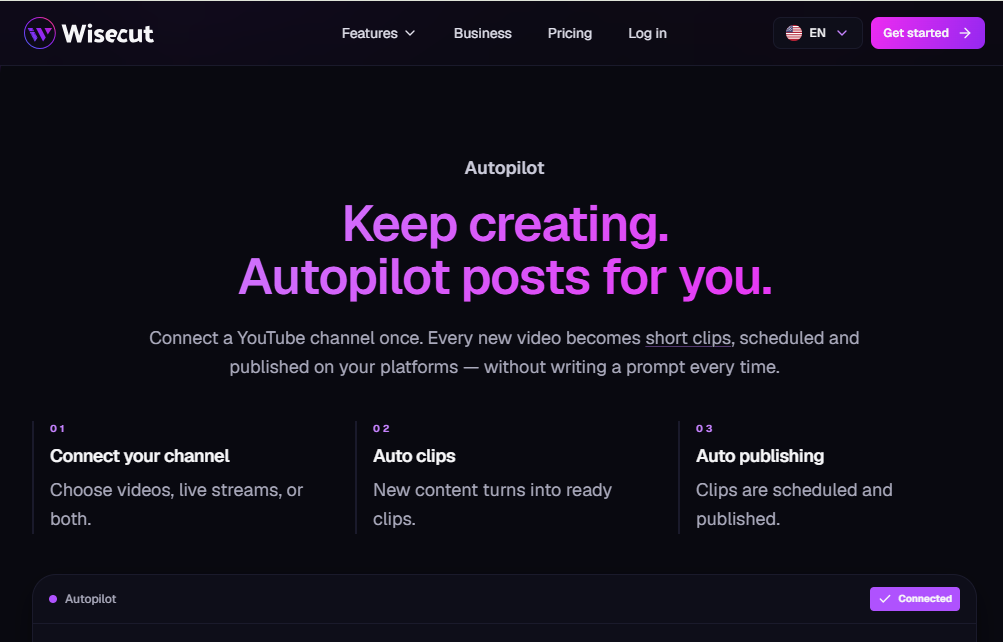
Social Hub and Autopilot
On higher-tier plans, Wisecut includes tools to schedule and auto-publish clips across platforms like TikTok, Instagram, YouTube, and LinkedIn, reducing the need for separate scheduling software.
How to Use Wisecut AI
Here’s a simple, beginner-friendly walkthrough:
- Create an account on the Wisecut website and choose the free plan to start (no credit card usually required for the free tier).
- Upload your footage. This can be a podcast recording, webinar, interview, or any long-form video file.
- Let the AI process the video. Wisecut will transcribe the audio and generate a text-based storyboard along with suggested cuts.
- Edit the transcript. Delete unwanted sections, trim filler content, or rearrange segments directly in the text editor.
- Add captions and music. Turn on auto-captions and select a suggested background track if you want added polish.
- Reframe for social media, if you’re creating vertical clips for TikTok, Reels, or Shorts.
- Preview the final video to check pacing, captions, and framing.
- Export or publish. Download the finished clip, or use the Social Hub (on paid plans) to schedule it directly to your social accounts.
Most users find the learning curve short — since editing happens through text rather than a timeline, it feels closer to editing a document than operating traditional video software.
Wisecut AI Pricing and Plans
Wisecut uses a freemium, credit-based pricing model, where “credits” are consumed based on how many minutes of video you process. As with most SaaS tools, exact pricing and included minutes can change, so it’s worth double-checking the official Wisecut pricing page before subscribing.
As of this writing, the general plan structure looks like this:
Free Plan – $0/month
- Limited monthly processing minutes
- Lower resolution output (with a watermark)
- Good for testing the platform, not for regular use
Starter+ Plan – Roughly $23–29/month (cheaper with annual billing)
- 1080p Full HD export
- No watermark
- A set monthly credit allowance for the editor and Autopilot
- Social scheduling features
Professional+ Plan – Roughly $83–119/month (cheaper with annual billing)
- 4K Ultra HD export
- Significantly higher monthly credits and processing time
- Priority support
- Multiple social accounts per platform
Enterprise / Custom Plans
- Available for teams or businesses needing higher volume, API access, or custom limits — pricing available on request.
Note: Prices, included minutes, and features change fairly often as Wisecut updates its plans. Always confirm current pricing directly on Wisecut’s official website before purchasing.
Pros and Cons
| Pros | Cons |
|---|---|
| Genuinely speeds up rough-cut editing through AI silence removal | Free plan is limited (low resolution, watermark, short processing time) |
| Text-based storyboard editing is beginner-friendly | Editing controls are less advanced than professional software like Premiere Pro |
| Auto-captions and multi-language subtitles boost accessibility and reach | Higher-tier plans can get expensive for heavy users |
| Auto reframing simplifies creating vertical clips for social media | AI highlight detection isn’t always perfectly accurate |
| Built-in Social Hub reduces need for separate scheduling tools | Credit-based system can feel confusing at first |
Who Should Use Wisecut AI?
Wisecut is best suited for:
- Podcasters and YouTubers who want to repurpose long episodes into short clips without hiring an editor
- Social media marketers who need a steady stream of short-form content from existing footage
- Small business owners who record webinars or product demos and want quick, polished clips
- Solo creators and freelancers who don’t have the time or budget for traditional editing software
- Teams doing content repurposing at scale, especially with the Professional+ plan’s higher processing limits
It’s less suited for editors who need frame-by-frame control, advanced color grading, complex motion graphics, or multi-layer compositing — for that kind of work, a traditional NLE (non-linear editor) is still the better tool.
Best Alternatives to Wisecut AI
If Wisecut doesn’t quite fit your workflow, here are a few solid alternatives worth comparing:
1. Vizard A strong competitor focused heavily on AI clip generation for repurposing long videos, with a similar highlight-detection approach and social publishing tools.
2. Opus Clip Popular among creators for its virality scoring system, which ranks generated clips by how likely they are to perform well, alongside auto-captioning and reframing.
3. Descript A text-based video and podcast editor known for its “edit like a document” approach, plus strong transcription and overdub features — great for creators who also do voice work.
4. CapCut A free, widely used editor (desktop and mobile) with AI-assisted tools, templates, and captioning — a good budget-friendly option, especially for social-first creators.
5. Veed.io A browser-based editor offering subtitles, translation, and basic AI editing tools, often chosen for its clean interface and accessibility features.
Each of these tools has its own strengths, so the right choice depends on whether you prioritize virality scoring, transcription accuracy, pricing, or manual editing depth.
Is Wisecut AI Safe to Use?
Generally speaking, Wisecut AI is a legitimate, established SaaS product (founded in 2019) with a public pricing structure, an official website, and reviews across independent software directories. It processes video and audio in the cloud, which means your footage is uploaded to their servers for AI analysis.
A few practical safety considerations:
- Data privacy: As with any cloud-based editing tool, avoid uploading highly sensitive or confidential footage unless you’ve reviewed Wisecut’s privacy policy and terms of service.
- Account security: Use a strong, unique password and enable two-factor authentication if it’s offered.
- Payment security: Subscriptions are typically processed through standard payment gateways, but always verify you’re on the official wisecut.ai domain before entering payment details.
- Content ownership: Check the terms of service to confirm you retain rights to videos you upload and export.
Overall, there’s nothing that stands out as inherently unsafe about Wisecut — the usual best practices for any cloud-based tool apply.
Frequently Asked Questions (FAQs)
1. Is Wisecut AI free to use? Yes, Wisecut offers a free plan with limited monthly processing minutes, lower resolution output, and a watermark. It’s suitable for testing but limited for regular content creation.
2. Does Wisecut AI work in a browser, or do I need to download software? Wisecut is browser-based, so there’s no software installation required — you can edit directly from your web browser.
3. Can Wisecut AI create vertical videos for TikTok and Reels? Yes, its auto-reframing feature converts horizontal footage into vertical formats suited for TikTok, Instagram Reels, and YouTube Shorts.
4. How accurate is Wisecut’s AI highlight detection? It’s generally helpful for narrowing down potential clip-worthy moments, but like most AI tools, it isn’t perfect — manual review is still recommended before publishing.
5. Does Wisecut support multiple languages for captions? Yes, Wisecut can generate auto-captions and subtitles in multiple languages, which is useful for reaching international audiences.
6. Can I schedule and publish videos directly from Wisecut? Yes, on paid plans, the Social Hub and Autopilot features let you schedule and auto-publish clips to platforms like TikTok, Instagram, YouTube, and LinkedIn.
7. Is Wisecut AI good for beginners with no editing experience? Yes, its text-based, storyboard-style editing is designed to be approachable for people with no prior video editing background.
Final Verdict
Wisecut AI does what it promises: it takes the tedious parts of video editing — trimming silences, writing captions, reformatting for social media — and automates them well enough to save real time. The text-based editing approach makes it genuinely accessible to beginners, while features like auto-reframing and the Social Hub add real value for creators focused on short-form content.
It’s not a replacement for professional editing software if you need fine-grained creative control, and the free plan is limited enough that most serious users will need to upgrade. But for podcasters, marketers, and creators who need to consistently turn long videos into short, polished clips without spending hours on manual editing, Wisecut AI is a practical, time-saving tool worth trying.
As always, check Wisecut’s official pricing page for the latest plan details before subscribing, since AI video tools in this space tend to update their offerings frequently.