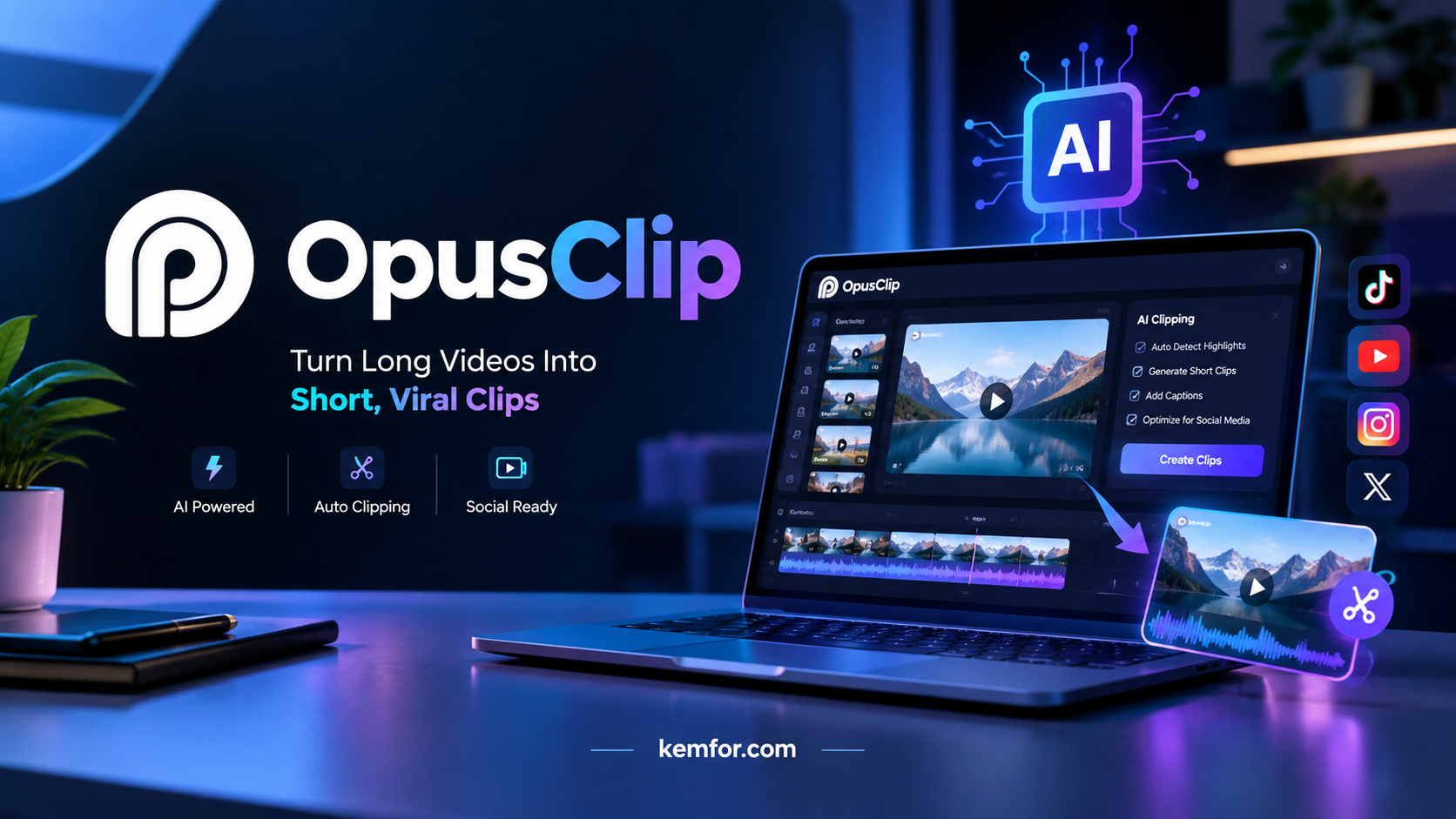
If you’ve ever spent hours scrubbing through a podcast recording or webinar looking for the “good part” to post on TikTok, you already know how painful manual video editing can be. That’s the exact problem OpusClip was built to solve.
OpusClip is an AI-powered video repurposing tool that takes a long video — a podcast, livestream, YouTube video, or Zoom recording — and automatically turns it into several short, social-media-ready clips. Instead of spending a full day editing, creators and marketing teams can generate a batch of clips in minutes, complete with captions, reframing, and even a score that predicts how likely each clip is to perform well.
This guide breaks down exactly what OpusClip does, how it works, what it costs, and whether it’s actually worth using in 2026 — whether you’re a solo creator, a podcaster, or part of a marketing team churning out short-form content every week.
What Is OpusClip?
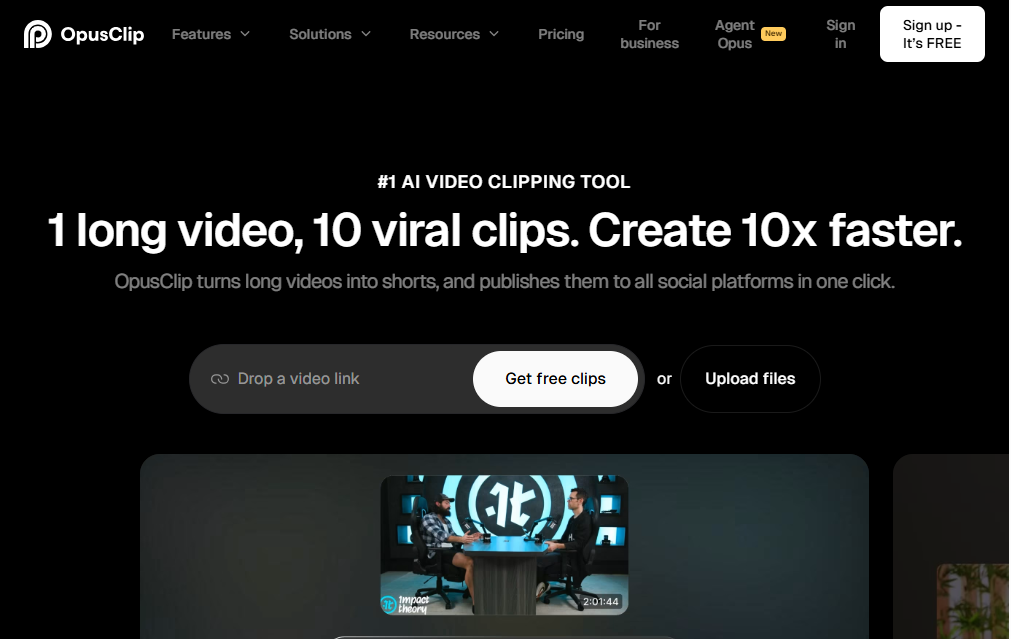
OpusClip is a web-based AI video editing platform designed specifically for short-form content creation. You upload (or link) a long-form video, and the AI analyzes it to find the most engaging, quotable, or emotionally compelling moments. It then cuts those moments into individual clips formatted for platforms like TikTok, Instagram Reels, and YouTube Shorts.
Beyond just cutting clips, OpusClip adds animated captions, reframes the footage into vertical or square formats, and can insert AI-generated B-roll to make clips feel more polished. It’s aimed at podcasters, YouTubers, coaches, marketers, and social media teams who need a steady stream of short content but don’t have time to manually edit every clip themselves.
In short: OpusClip acts like a virtual video editor that specializes in finding “clip-worthy” moments and packaging them for social media, without needing traditional editing skills.
How Does OpusClip Work?
At a technical level, OpusClip combines a few different AI capabilities to turn one long video into many short ones:
- Transcription and content analysis – The tool transcribes your video and analyzes the speech for hooks, emotional peaks, punchy statements, and storytelling structure.
- Clip selection – Based on that analysis, it identifies multiple segments that could work as standalone clips, rather than just chopping the video into random time blocks.
- Auto-reframing – Since most long-form videos are shot in widescreen (16:9), OpusClip uses AI to track speakers and reframe the footage into vertical 9:16 or square 1:1 formats without cutting people out of frame.
- Captioning and styling – Animated, karaoke-style captions are added automatically, along with optional branding, emojis, and highlight effects.
- Scoring – Each generated clip gets a “Virality Score,” which is OpusClip’s prediction of how well that specific clip might perform based on pacing, hook strength, and content patterns.
The result is a set of ready-to-post (or nearly ready-to-post) clips that would otherwise take an editor hours to produce manually.
Key Features of OpusClip
AI Clipping (ClipAnything) OpusClip scans your source video and automatically finds multiple potential clips, rather than requiring you to manually mark in and out points for every single moment.
Virality Score Every generated clip is given a score that estimates its potential to perform well, helping you prioritize which clips to post first instead of guessing.
Auto Reframe The AI tracks faces and movement to intelligently reframe horizontal video into vertical or square formats, keeping speakers centered even when the camera angle changes.
Animated Captions Clips come with auto-generated, styled captions in 20+ languages, which is important since most social media users watch videos with the sound off.
Built-in Editor Once clips are generated, you can trim, adjust captions, change fonts, add brand templates, and remove filler words or awkward pauses directly inside OpusClip’s editor — no separate editing software required.
AI B-Roll On higher plans, OpusClip can insert relevant B-roll footage automatically to break up “talking head” shots and make clips feel more dynamic.
Social Scheduler Paid plans let you schedule and publish clips directly to platforms like YouTube Shorts, TikTok, and Instagram Reels from within OpusClip, instead of downloading and uploading manually.
Brand Templates You can save custom caption styles, colors, and logos as templates, so every clip stays visually consistent with your brand.
Export Flexibility Higher-tier plans support exporting clip data (like an XML file) to professional editors such as Premiere Pro or CapCut for further fine-tuning.
How to Use OpusClip
Here’s a simple, beginner-friendly walkthrough of the process:
- Create an account. Sign up on OpusClip’s website using email or a Google account. You can start on the free plan with no credit card required.
- Upload your video. Upload a file directly, or paste a link from YouTube, Google Drive, or a similar source.
- Let the AI process it. OpusClip transcribes and analyzes the footage, then generates a batch of clip suggestions, each with a Virality Score.
- Review the suggested clips. Scroll through the generated clips and preview them. Keep the ones you like and discard the rest.
- Edit as needed. Open a clip in the built-in editor to adjust captions, trim timing, change the aspect ratio, add your brand template, or remove filler words.
- Export or schedule. Download the finished clip directly, or — on paid plans — schedule it to post automatically to your connected social accounts.
- Repeat for your next upload. Since clip generation is automated, you can process a new long-form video every time you publish new content.
The entire workflow is designed so that even someone with zero video editing background can produce professional-looking short clips.
OpusClip Pricing and Plans
OpusClip uses a credit-based system, where credits roughly correspond to minutes of source video processed (not minutes of clips exported). As of 2026, the plans look like this:
- Free – $0/month. Includes 60 credits per month, but exports are watermarked and only available in 9:16 format, with projects expiring after a short window. Good for testing the tool, not for regular use.
- Starter – around $15/month. Includes about 150 credits per month, watermark-free exports, a basic editor, animated captions, and one brand template. Billed monthly only, with no annual discount.
- Pro – around $29/month (or a lower effective monthly rate if billed annually). Includes roughly 300 credits per month, all aspect ratios, AI B-roll, the social media scheduler, a small team workspace, and export options for professional editors.
- Business – custom pricing. Designed for agencies and larger teams, with higher/custom credit volumes, unlimited seats, API access, and enterprise-level support.
Because pricing, credit allowances, and plan features change fairly often, always check OpusClip’s official pricing page before subscribing to confirm the current rates and limits.
Pros and Cons
| Pros | Cons |
|---|---|
| Saves significant time compared to manual clipping | Credit system can be confusing, since usage is based on source video minutes, not clips produced |
| Virality Score helps prioritize which clips to post | Free plan is quite limited (watermark, short expiry, one format) |
| Auto-reframing keeps speakers in frame across formats | Starter plan lacks features like scheduling and B-roll |
| Built-in captions in many languages | AI clip selection isn’t always perfect and needs manual review |
| Scheduler removes the need for separate posting tools | Costs can add up for teams processing lots of long-form content |
| No editing experience required to get started | Advanced features (API, unlimited seats) are locked behind custom Business pricing |
Who Should Use OpusClip?
OpusClip is a strong fit for:
- Podcasters who want to turn full episodes into a week’s worth of short clips without hiring an editor.
- YouTubers and streamers looking to repurpose long videos or livestreams into Shorts and Reels.
- Coaches, consultants, and course creators who record long talks or webinars and want bite-sized promotional content.
- Social media managers and marketing teams managing multiple client accounts that need consistent short-form output.
- Solo creators on a budget who can’t afford a dedicated video editor but still want to post regularly.
It’s less useful for people who only occasionally post video, or who need highly customized, artistic editing that goes beyond clip extraction and captioning — in those cases, a traditional editor or full editing suite may be a better fit.
Best Alternatives to OpusClip
- Vizard – A similar AI clipping tool with automatic highlight detection and reframing, often compared to OpusClip on price and feature set.
- Klap – Focuses heavily on short-form clip generation with AI-driven virality scoring and captioning, popular among solo creators.
- Descript – A full-featured editor that lets you edit video by editing text (like a document), better suited for people who also want detailed manual control over editing.
- CapCut – A free, widely-used editor with templates and some AI features; less automated than OpusClip but more flexible for manual editing and it’s completely free.
- Munch – Another AI repurposing tool aimed at marketers, with a focus on multi-platform distribution and analytics.
Each of these tools takes a slightly different approach, so the best choice depends on how much automation you want versus how much manual control you need.
Is OpusClip Safe to Use?
OpusClip is a legitimate, widely used platform with a large user base among podcasters and content creators, and some pricing pages note it holds SOC 2 Type II compliance on its plans, which relates to how it handles data security. As with any cloud-based tool, it’s worth reviewing OpusClip’s official privacy policy and terms of service to understand exactly how your uploaded video content is stored and used, especially if you’re working with sensitive or client-owned footage.
From a practical safety standpoint, there are no widespread reports of major security incidents tied to the platform. That said, general good practice applies: use a strong, unique password, avoid uploading content you don’t have rights to, and check the platform’s current data retention policy if privacy is a concern for your use case.
Frequently Asked Questions (FAQs)
Is OpusClip free to use? Yes, there’s a free plan, but it comes with watermarked exports, a single aspect ratio, and short project expiry — it’s best for testing the tool rather than regular use.
Does OpusClip work with any video length? Yes, but longer videos use more credits since usage is based on minutes of source footage processed, not the number of clips generated.
Can OpusClip post directly to social media? Yes, on paid plans (typically Pro and above) OpusClip includes a scheduler that can publish clips directly to platforms like YouTube Shorts, TikTok, and Instagram Reels.
Do I need editing experience to use OpusClip? No. The AI generates clips automatically, and the built-in editor is designed to be simple enough for beginners to make small adjustments.
What languages does OpusClip support for captions? OpusClip supports animated captions in 20+ languages, making it usable for creators publishing content beyond English-speaking audiences.
Is the Virality Score always accurate? It’s a helpful prediction based on pacing and content patterns, but it’s not guaranteed — actual performance still depends on your audience, platform algorithm, and posting strategy.
Can I export clips to other editing software? Yes, on higher-tier plans OpusClip supports exporting clip data for use in professional editors like Premiere Pro or CapCut.
Final Verdict
OpusClip is a genuinely useful tool for anyone producing long-form video who wants to consistently show up on short-form platforms without burning hours on manual editing. Its AI clip selection, auto-reframing, and captioning handle the repetitive parts of editing well, and the Virality Score adds a helpful layer of guidance for creators unsure which clips to prioritize.
That said, it’s not a magic button — clips still benefit from a human review pass, the credit system takes a bit of getting used to, and the free plan is really just a taste test rather than a full solution. For podcasters, coaches, and marketing teams who publish short-form content regularly, a paid plan is likely to pay for itself in saved editing time. For casual or occasional creators, it may be worth starting on the free plan or comparing it against a cheaper alternative first.
As always, since pricing and features can shift over time, check OpusClip’s official website for the latest plan details before subscribing.