
Building a presentation from scratch is one of those tasks that sounds simple until you’re staring at a blank slide, trying to figure out why your text box won’t align with your image. Beautiful.ai was built to solve exactly that problem. It’s an AI-powered presentation tool that promises to handle the design work for you, so you can spend your time on the message instead of the margins.
If you’ve been searching for a faster way to create professional-looking slides, you’ve probably come across Beautiful.ai in your research. This review breaks down what it actually does, who it’s best suited for, what it costs, and where it falls short — so you can decide if it deserves a spot in your toolkit.
What Is Beautiful.ai?
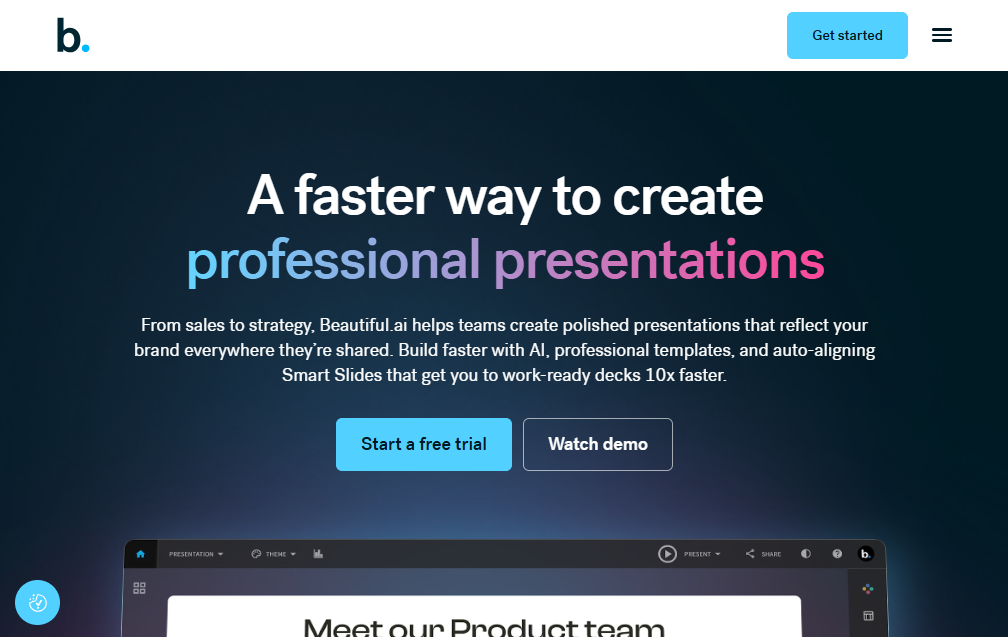
Beautiful.ai is a cloud-based, browser-first presentation maker built around a core idea: design shouldn’t be a manual chore. Instead of dragging and resizing text boxes the way you would in PowerPoint or Google Slides, you work with what the company calls Smart Slides.
A Smart Slide is a pre-built layout with design rules baked into it. When you type in text, drop in an image, or paste a chart, the slide automatically adjusts spacing, alignment, and sizing to keep everything looking clean. You’re not designing — you’re filling in a template that designs itself as you go.
This approach makes Beautiful.ai especially appealing to people who don’t consider themselves “design people” but still need to produce polished, client-ready or boardroom-ready decks on a regular basis.
How Beautiful.ai Works
Getting started with Beautiful.ai is fairly straightforward, and there are a few different paths depending on how much of a head start you want:
- Start with a prompt. Describe your topic and let the AI generate an initial outline and slide structure.
- Paste an outline or source material. If you already have notes, a report, or bullet points, the tool can turn them into a structured deck.
- Pick a ready-made template. Beautiful.ai offers dozens of professionally designed templates for pitch decks, business reviews, sales presentations, and more.
- Build slide by slide. If you prefer full manual control over structure (while still getting automated design), you can start from a blank Smart Slide and build it out piece by piece.
Once your content is in place, the AI handles the visual heavy lifting — adjusting layout, suggesting images, and keeping fonts, colors, and spacing consistent across every slide.
The Smart Slide System
The Smart Slide engine is really the heart of the product. Rather than giving you a blank canvas, Beautiful.ai gives you a library of over 70 layout types, each with built-in design logic. Add a bullet point, and the layout resizes. Add a fourth image to a three-image slide, and the grid reorganizes itself instead of breaking. This is what makes it genuinely difficult to produce a messy or unbalanced slide in Beautiful.ai, even if you have zero design background.
Key Features of Beautiful.ai
Here’s a closer look at the features that come up most often in Beautiful.ai reviews and comparisons.
1. AI-Powered Content Generation
Beyond layout automation, Beautiful.ai includes generative AI tools (often referred to under the DesignerBot name) that can:
- Draft full slide decks from a single prompt or topic
- Rewrite bullet points to be more concise or persuasive
- Generate relevant images directly inside the editor
- Translate slide content into other languages
This makes it useful not just for formatting existing content, but for getting past the “blank page” problem entirely.
2. Data Visualization Tools
Business presentations often live or die by how clearly they present numbers. Beautiful.ai includes built-in tools for creating charts, graphs, timelines, and diagrams without needing a separate design tool or spreadsheet export. This is particularly handy for strategy decks, quarterly business reviews, and sales reports where data needs to look trustworthy at a glance.
3. Brand Consistency Controls
For teams, keeping every presentation on-brand is often more of a headache than the actual slide design. Beautiful.ai lets you lock in brand colors, fonts, and logos so that every new deck automatically follows your company’s visual identity — no more decks that look like they came from five different departments.
4. Real-Time Collaboration
Multiple people can work on the same presentation at once, similar to how Google Slides or Google Docs handles collaboration. This is a meaningful advantage for teams that build decks together, such as sales and marketing teams preparing for a pitch.
5. Viewer Analytics
One feature that sets Beautiful.ai apart from more basic presentation tools is its viewer analytics. When you share a deck as a link, you can see how long viewers spent on each slide. For sales teams, this kind of engagement data can be genuinely useful for understanding which parts of a pitch are landing and which ones are getting skipped.
6. Export and Sharing Options
Beautiful.ai supports exporting to PowerPoint (.pptx) and PDF formats, so your work isn’t locked into one platform. You can also share presentations as web links or present directly from the browser. There’s also an offline player for presenting exported decks without an internet connection, though the platform is primarily designed to be used online.
Beautiful.ai Pricing
Beautiful.ai typically offers a few pricing tiers, generally structured around individual users versus teams:
- Pro Plan — Designed for individuals, freelancers, and consultants. Includes unlimited Smart Slide presentations, AI content generation, and PowerPoint/PDF export.
- Team Plan — Adds real-time collaboration, shared asset libraries, team-wide brand controls, and team analytics.
- Enterprise Plan — Built for larger organizations, with additional security, support, and administrative controls.
Most plans are billed annually for a lower monthly rate, with a monthly billing option available at a higher price. A free trial is usually offered, though it’s worth reading the trial terms carefully, since a card is typically required upfront and the plan renews automatically once the trial ends.
Because pricing and trial terms can change, it’s a good idea to check the official Beautiful.ai pricing page before signing up.
Beautiful.ai Pros and Cons
No tool is perfect for everyone. Here’s a balanced look at where Beautiful.ai shines and where it might disappoint you.
Pros
- Fast path from idea to finished deck. The Smart Slide system removes almost all manual formatting work.
- Consistently professional results. It’s genuinely hard to create an ugly or misaligned slide, which is great for non-designers.
- Useful for teams. Brand controls and real-time collaboration keep everyone working from the same visual standard.
- Actionable analytics. Viewer engagement data adds real value for sales and client-facing presentations.
- Solid export options. PowerPoint and PDF export mean your decks aren’t stuck in one ecosystem.
Cons
- Less creative freedom. Because Smart Slides enforce structure, users who want pixel-level control over their design may feel boxed in.
- Limited media flexibility. Some users have reported difficulty uploading video content directly into slides.
- AI features can feel basic. While helpful for formatting and simple content generation, the AI doesn’t always feel dramatically more advanced than what’s available in other modern tools.
- Trial and billing complaints. Some users have reported being charged unexpectedly after a free trial, so it’s important to track your trial period and cancel manually if you don’t plan to continue.
- No lower-tier collaboration. Real-time team collaboration is generally reserved for higher-priced plans, not the entry-level individual plan.
Beautiful.ai vs. PowerPoint vs. Canva vs. Gamma
If you’re weighing Beautiful.ai against other tools, here’s how the core approach differs:
| Tool | Core Approach | Best For |
|---|---|---|
| Beautiful.ai | Auto-designed Smart Slides that adjust as you type | Fast, consistently polished decks with minimal design effort |
| PowerPoint | Fully manual, freeform canvas | Maximum control and offline editing |
| Canva | Drag-and-drop templates | Visual, marketing-style designs with more creative freedom |
| Google Slides | Simple, lightweight slide editor | Quick, no-frills collaboration |
| Gamma | AI-first content and slide generation | Turning rough notes into a full narrative quickly |
The short version: if you want structure and consistency without thinking about design, Beautiful.ai is hard to beat. If you want total creative control, a more manual tool like PowerPoint or Canva may suit you better.
Who Should Use Beautiful.ai?
Beautiful.ai tends to work best for:
- Business professionals who need to produce client or investor-facing decks quickly
- Sales teams who want engagement analytics on shared presentations
- Consultants and freelancers who need polished output without hiring a designer
- Marketing teams that need consistent, on-brand presentations across multiple people
- Educators and trainers building structured, easy-to-follow slide content
It may be less ideal for graphic designers or anyone who wants granular, pixel-by-pixel control over every visual element, since the Smart Slide system is intentionally somewhat restrictive by design.
Final Verdict: Is Beautiful.ai Worth It?
Beautiful.ai does what it sets out to do: it removes the tedious, time-consuming parts of building a presentation and replaces them with a system that keeps your slides looking clean and professional by default. For people who need to produce decks regularly but don’t have design training, that trade-off is genuinely valuable.
It’s not the right fit for everyone. If you want complete creative freedom or need advanced video handling, you may find the structure more limiting than helpful. And given some reports around trial billing, it’s worth reading the terms carefully before entering payment details.
For most business users, though, Beautiful.ai offers a real time-saving advantage over building slides manually — and that alone makes it worth a serious look if presentations are a regular part of your work.
Frequently Asked Questions
Is Beautiful.ai free to use? Beautiful.ai generally offers a free trial rather than a permanent free plan. After the trial period, a paid subscription is required to continue using the platform.
Can I export Beautiful.ai slides to PowerPoint? Yes. Beautiful.ai supports exporting presentations as editable PowerPoint (.pptx) files as well as PDFs.
Does Beautiful.ai work offline? Beautiful.ai is primarily a browser-based tool, but it offers an offline player for presenting decks you’ve already exported. It’s not a full offline editing solution.
Is Beautiful.ai good for beginners with no design experience? Yes — this is arguably where it performs best. The Smart Slide system is specifically designed to make it difficult to produce a poorly designed slide, even without any design background.